


Here I have compiled a list of commands and some info to get you started with BeagleBone Black. I will keep updating this list of commands as I find something new . I hope that it will save you some time .
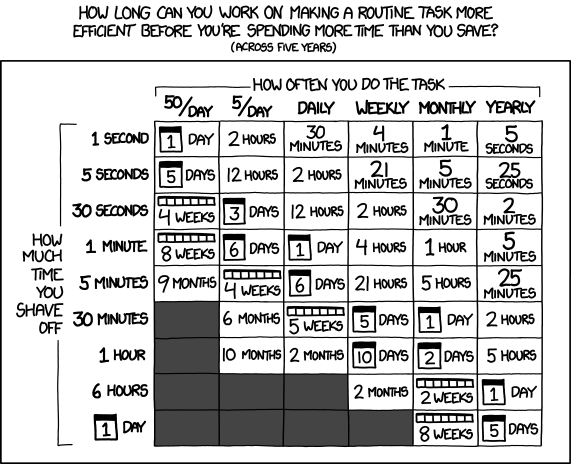
picture credits: xkcd.com
All of these commands are to be executed on the BeagleBone black (BBB for short) itself after you login as root, and are expected to work on kernel version 4.4.11+
Content
- Starters
- Environment Variables
- Config-pin utility
- Force rebooting
- Sharing your Ubuntu system’s Internet with BBB
- Kernel Development
- Linux Headers
- Install latest kernel
- BBB kernel source
- BBB clone kernel source
- Cross-compiler toolchain
- Particular kernel config file
- Cross compiling the kernel source
- Cross compile a driver
- Working with PRUs
- Fact 1
- To shutdown PRU0
- To shutdown PRU1
- More
Starters :{#strt}
- Environment Variables - ssh into your BBB and append your bashrc with following lines: {{< highlight bash >}} export PINS=/sys/kernel/debug/pinctrl/44e10800.pinmux export SLOTS=/sys/devices/platform/bone_capemgr/slots export FW=/lib/firmware {{< /highlight >}}
-
Config-pin utility - To change the pinmux settings for a pin does not need device tree overlays now (4.4+ kernel), you can simply use ‘config-pin’ utility. To configure the pin you just need to know its position on the board, so to change mux settings of pin at , for example , P8_46 {{< highlight bash >}} default gpio gpio_pu gpio_pd pruout pruin pwm {{< /highlight >}} Now to change pinmode, to, for example, pruout {{< highlight bash >}} config-pin -i P8_46 Pin name: P8_46 Function if no cape loaded: hdmi Function if cape loaded: default gpio gpio_pu gpio_pd pruout pruin pwm Function information: lcd_data1 default gpio2_7 gpio2_7 gpio2_7 pr1_pru1_pru_r30_1 pr1_pru1_pru_r31_1 ehrpwm2B Cape: cape-universala cape-univ-hdmi Kernel GPIO id: 71 PRU GPIO id: 103 {{< /highlight >}}
-
Force rebooting - One of my favorite commands, rebooting your BBB when something goes wrong and it won’t reboot the normal way ( Thanks to Stephanie for this).
{{< highlight bash >}} echo b >/proc/sysrq-trigger {{< /highlight >}} -
Sharing your Ubuntu system’s Internet with BBB - Use the command {{< highlight bash >}}$ ifconfig {{< /highlight >}} to determine the interface your system is using to connect to BBB (it will be mostly eth0) and to the Internet.
-
Let the Internet interface and BBB interface be <Internet-interface> and <BBB-interface> respectively. Now on your system, execute following commands as root: {{< highlight bash >}} iptables -A FORWARD -i
-j ACCEPT iptables -t nat -A POSTROUTING -o wlan0 -j MASQUERADE sysctl net.ipv4.ip_forward=1 {{}} -
On your BBB, execute this command after you login as root : {{< highlight bash >}} $ route add default gw 192.168.7.1 {{< /highlight >}}
-
To automate all this Internet connecting thing, just put all these commands in /etc/rc.local in their respective systems.
-
Now to test if all this works, use command “ping 8.8.8.8” and the output should look like : {{< highlight bash >}} root@beaglebone:~# ping 8.8.8.8 PING 8.8.8.8 (8.8.8.8) 56(84) bytes of data. 64 bytes from 8.8.8.8: icmp_seq=1 ttl=54 time=49.2 ms 64 bytes from 8.8.8.8: icmp_seq=2 ttl=54 time=46.1 ms 64 bytes from 8.8.8.8: icmp_seq=3 ttl=54 time=40.0 ms 64 bytes from 8.8.8.8: icmp_seq=4 ttl=54 time=52.1 ms ^C --- 8.8.8.8 ping statistics --- 4 packets transmitted, 4 received, 0% packet loss, time 3006ms rtt min/avg/max/mdev = 40.021/46.883/52.108/4.496 ms {{}}
-
It will be then useful to add “nameserver 8.8.8.8” in the first line of your /etc/resolv.conf
-
Kernel Development{#kdev}
- Linux Headers - To install Linux kernel header files for your current Linux version: {{< highlight bash >}} (uname -r) {{}}
-
Install latest kernel - To install a new version of kernel image for example: kernel image 4.4.11-ti-r29 ( Thanks to Steve Arnold for these ) : {{< highlight bash >}} export NEW=“4.4.11-ti-r29” NEW linux-headers-NEW {{< /highlight >}}
-
BBB kernel source - To browse the kernel source of a particular version, go onto : {{< highlight bash >}}https://github.com/RobertCNelson/linux-stable-rcn-ee/tree/
{{< /highlight >}} for example if you want to go to the 4.4.11-ti-r29 kernel, the link will be : {{< highlight bash >}}https://github.com/RobertCNelson/linux-stable-rcn-ee/tree/4.4.11-ti-r29{{< /highlight >}} -
BBB clone kernel source - To clone a kernel source ( Thanks to Michael Welling and Stephanie for help on this ) : {{< highlight bash >}} git clone —depth=100 -b
https://github.com/RobertCNelson/linux-stable-rcn-ee.git KERNEL- mkdir KERNEL-4.4.11-ti-r29 touch KERNEL-4.4.11-ti-r29/.ignore-4.4.11-ti-r29 {{< /highlight >}} -
Cross-compiler toolchain - To download the latest version of cross-compiler tool-chain ( command source : eewiki ) {{< highlight bash >}} wget -c https://releases.linaro.org/components/toolchain/binaries/5.3-2016.02/arm-linux-gnueabihf/$DWL export CC=
pwd/gcc-linaro-5.3-2016.02-x86_64_arm-linux-gnueabihf/bin/arm-linux-gnueabihf- {{< /highlight >}} -
Particular kernel config file - To download .config file of a particular kernel build number: {{< highlight bash >}} wget -c http://rcn-ee.net/deb/jessie-armhf/v$NEW/defconfig -O config- export NEW=“4.4.11-ti-r29” NEW/defconfig -O config-$NEW {{< /highlight >}}
-
Cross compiling the kernel source - To cross compile the source code, cd into the kernel source’s root : {{< highlight bash >}} export BUILD_V="
" export KERN_V=“4.4.11” export CROSS_COMPILE=../../toolcahin/gcc-linaro-5.3-2016.02-x86_64_arm-linux-gnueabihf/bin/arm-linux-gnueabihf- {{< /highlight >}} then after that: {{< highlight bash >}} BUILD_V CROSS_COMPILE=path/to/the/cross/compile/toolchain KERN_V make ARCH=arm LOCALVERSION=$BUILD_V CROSS_COMPILE=path/to/the/cross/compile/toolchain {{< /highlight>}} -
Cross compile a driver - To cross compile particular drivers that is present in your kernel source, you will have to go through complete kernel build process at-least once so that it generates that symbol version file, and only then will you be able to load the module. Follow above steps to build the kernel, then to compile one driver {{< highlight bash >}} BUILD_V {{< /highlight>}} for example to compile rpmsg drivers : {{< highlight bash >}} BUILD_V {{< /highlight>}}
Working with PRUs{#wprus}
- Fact 1 - Rebooting any PRU core (0 or 1) will result in reloading of the firmware that is at /lib/firmware/am335x-pruN-fw (pruN can be pru0 or pru1)
-
To shutdown PRU0 {{< highlight bash >}} echo “4a334000.pru0” > /sys/bus/platform/drivers/pru-rproc/unbind {{< /highlight>}} and to boot it up {{< highlight bash >}} echo “4a334000.pru0” > /sys/bus/platform/drivers/pru-rproc/bind {{< /highlight>}}
-
To shutdown PRU1 {{< highlight bash >}} echo “4a338000.pru1” > /sys/bus/platform/drivers/pru-rproc/unbind {{< /highlight>}} and to boot it up {{< highlight bash >}} echo “4a338000.pru1” > /sys/bus/platform/drivers/pru-rproc/bind {{< /highlight>}}
-
More - Some more of them have been described in the 2nd post of PTP series